See it in action
The whole show, from one clean panel.
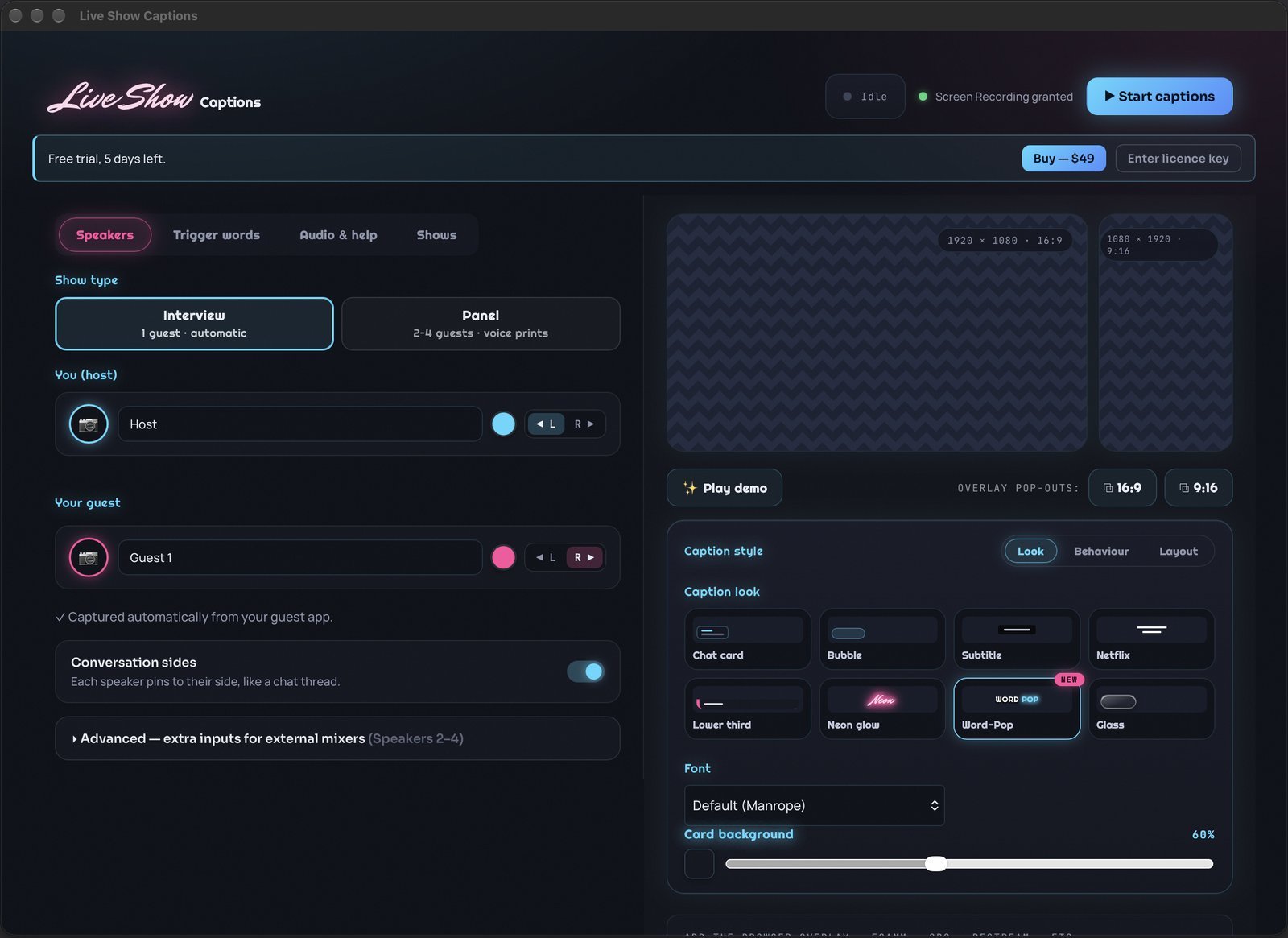
Name your speakers, record a voice print, style your captions and grab your overlay URL — it's all in one native control panel.
A transparent web overlay that drops into any streaming app with a browser source.
Live Show Captions puts clean, colour-coded captions on your stream — a different colour for every speaker, so viewers always know who's talking. Drop in one transparent overlay URL and you're on air.
7-day free trial · Just your email, no card · Runs locally, nothing leaves your Mac
"Who's talking right now?"
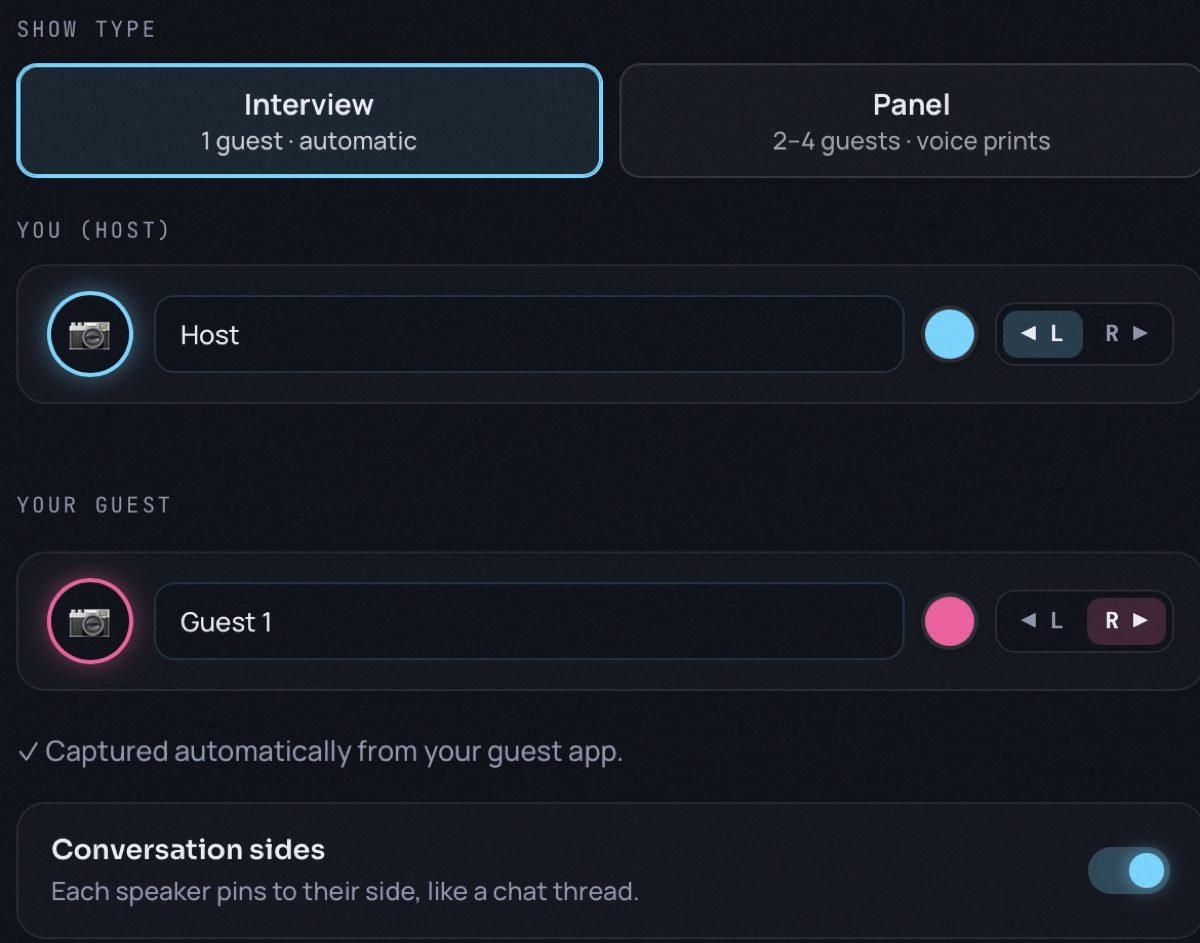
Live Show Captions answers it visually. Each speaker gets their own colour, name and side of the screen — so a two-person interview reads like a conversation, not a wall of grey text.
Half your audience is watching muted.
Scrolling past in a feed, most people never turn the sound up — the captions are your show. When they all look identical, everything you did to make it feel like a real conversation stops at the speakers.
Everything runs from a native menu-bar app and a clean control panel. No accounts, no cloud, nothing leaves your Mac.
The colours switch by themselves.
Record a few seconds from each speaker once and the app builds a voice print — a fingerprint of how that person sounds. From then on it hears who's talking and switches the colour, name and side of the screen on its own, mid-conversation. No hotkeys, no clicking between speakers, no second pair of hands in the studio.
Speak in your language. Caption in theirs.
Pick one of nearly 40 languages and your captions appear on the overlay already translated, live, while you keep speaking naturally. Like everything else in the app, translation runs entirely on your Mac: your audience in Lisbon, Berlin or São Paulo reads along and nothing ever touches the cloud.
Name your speakers, record a voice print, style your captions and grab your overlay URL — it's all in one native control panel.
Transcription runs natively on your Mac. Drop one transparent overlay URL into your streaming app and you're live.
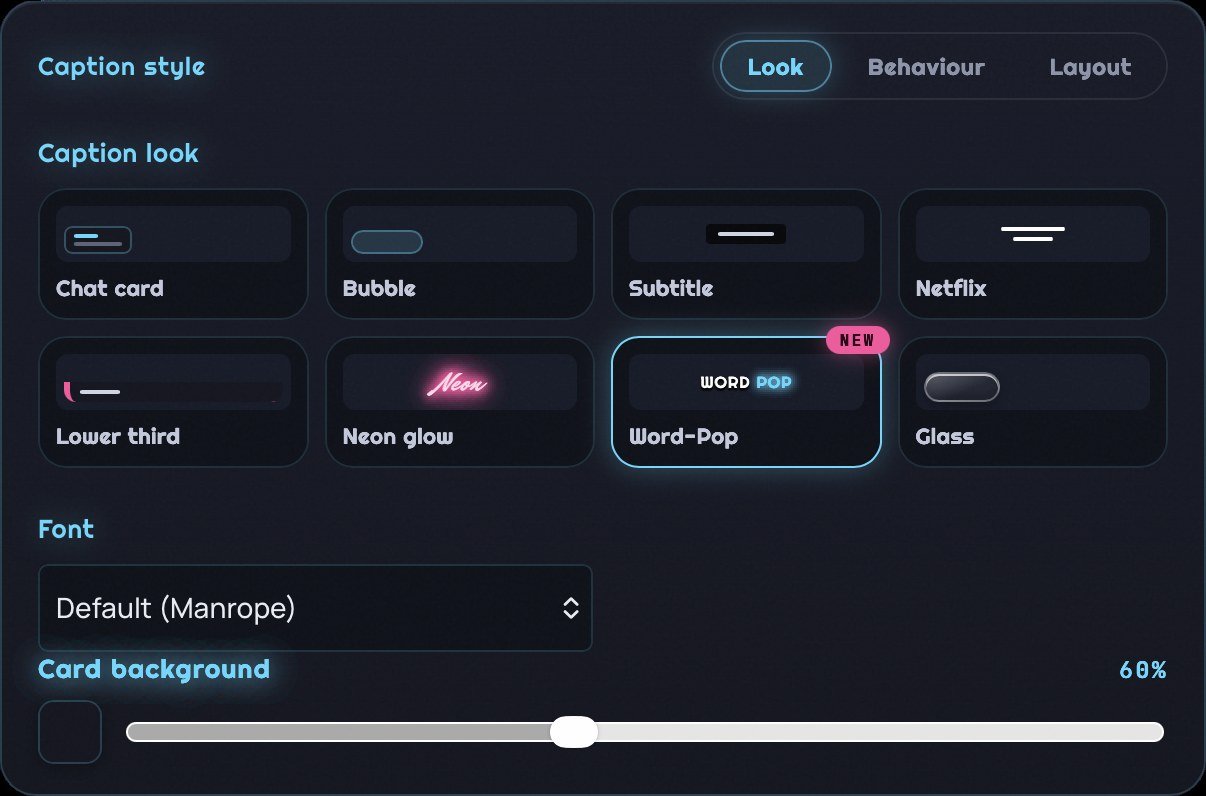
Chat card · Bubble · Subtitle · Netflix · Lower third · Neon glow · Word-Pop · Liquid Glass — pick size, colour and hold time to match your brand.
Updates are free for every owner and arrive right inside the app. Here's what's new.
Live Show Captions is actively developed — here's what's coming next. Buy at the founder price and you help shape it.
How do I add live captions to a live show or stream on a Mac?
Run Live Show Captions from your menu bar, click Start Captions, then paste its overlay URL into a browser source in your streaming app. The captions appear over your video as a transparent layer — no cloud service, no extra hardware, and they work on every platform you stream to.
Does it work with OBS, Ecamm Live, Camo Studio and Restream?
Yes. Anything that accepts a browser or web source can display the overlay — Ecamm Live, OBS Studio, Meld, Camo Studio, Restream Studio and most other streaming tools. You paste one local URL and size and position it however you like.
Can it caption my remote guests as well as me?
Yes. It pulls your guests' audio straight from Zoom, Ecamm or Chrome — no virtual audio cables — and captions up to four guests, each with their own colour, name and side of the screen.
How does it know who's speaking?
You record a few seconds of each speaker once and the app builds a voice print. From then on it recognises each voice and switches the colour, name and screen side automatically mid-conversation — no hotkeys and no clicking between speakers.
Can it translate my captions into another language?
Yes. Pick a target language and your captions appear translated live, while you speak in your own. Nearly 40 languages are built in, and translation runs on your Mac like everything else, so nothing is sent to the cloud. Translated captions land line by line rather than word by word, because whole sentences translate far better than fragments.
Is my audio sent to the cloud?
No. Transcription and voice recognition run entirely on your Mac. Audio, captions and voice prints never leave your machine, and there's no account to create.
What Mac do I need?
An Apple Silicon Mac (M1 or later) running macOS. Live Show Captions is a native menu-bar app — not a browser tool or a cloud service.
How much does Live Show Captions cost?
$49, once. That's the founder price for the first 50 buyers, after which it goes to $69. There's no subscription and no renewal — you buy the licence and it's yours to keep, on up to two Macs. Point releases are free.
Is there a free trial?
Yes — seven days of the whole app, with nothing held back. You start it with your email address, and no card is needed. The seven days start the first time you actually caption something, not the moment you install it, so you can set everything up at your own pace and still get a full week of real shows.
How is this different from Apple Live Captions?
Apple Live Captions (and notch caption apps) draw captions on your own screen, for you to read — they can't appear on a stream. Live Show Captions renders captions for your audience: a styled, colour-coded overlay inside Ecamm, OBS, Camo Studio or Restream that every viewer sees, with each speaker identified by voice.
New to captioning a show? Read the full guide: How to add live captions to your live show on a Mac.
Checking your setup? See the full list: apps that work with Live Show Captions.
Buy it once and it's yours. No subscription, no renewal, no licence that quietly expires the week you need it. $49 is the founder price for the first 50 buyers — after that it goes to $69.
Live Show Captions puts clean, colour-coded live captions on your Mac live stream — a different colour for every speaker, so viewers always know who is talking. A native macOS app with a transparent overlay for Ecamm, OBS and Restream. $49 one-time, no subscription.
Not sure yet? Take the 7-day free trial — the whole app, no card, and the clock only starts the first time you caption a show.
Built by Neil Farrimond · v1.12.1 · September 2026
© 2026 Neil Farrimond. All rights reserved. Live Show Captions, its user interface and caption designs are protected by copyright. The app is licensed, not sold — use is governed by the licence below.
Your licence. A perpetual personal licence to use the app on up to two Macs you own or control, for your own shows. It does not expire and there is nothing to renew.
Free trial. Seven days of the full app, with no payment details taken and nothing to cancel. The seven days begin the first time you start captioning, not when you install. When the trial ends the app stops captioning until a licence is entered; everything you set up stays on your Mac. If you gave an email address when you started the trial, it is used only to send you two messages about the trial itself.
One payment. $49 at the founder price (rising to $69 once the first 50 licences are sold) — paid once, not recurring. There is no subscription, no auto-renewal and no charge after purchase. Point releases and fixes are included for free; a future major version may be offered as a paid upgrade at a discount for existing owners, and your current version keeps working either way. Your settings and voice prints stay on your Mac throughout. Purchases can be withdrawn within 14 days (EU right of withdrawal).
What you can't do. Share, resell or publish licence keys; copy or redistribute the app; reproduce its interface, caption designs or documentation in a competing product; reverse engineer it except where EU law expressly permits; or tamper with licensing.
Privacy. Transcription runs on your Mac. Your audio, captions and voice prints never leave your machine. No analytics, no tracking. Purchases are processed by Stripe.
Honesty about captions. Live transcription is imperfect by nature. Captions aren't guaranteed to be accurate and the app isn't a substitute for a dedicated accessibility/compliance solution. If it doesn't work on your supported Mac and we can't fix it, we'll refund your purchase in full.
The legal frame. Provided "as is"; liability limited to what you've paid in the last 12 months; governed by Portuguese and EU law — without affecting your statutory consumer rights. Questions: via the contact details on this site.
Pop your email in and the download link is yours. Seven days of the whole app, no card, nothing to cancel.
I'll email you twice about your trial, and nothing else. Apple Silicon Mac required.