Live Show Captions works with any Mac streaming or production app that can display a browser source. The app serves your captions as a transparent web overlay at a local URL — you paste that URL into a browser (web) source, size it to your canvas, and the captions appear over your video. That's the whole integration. Confirmed working: Ecamm Live, OBS Studio, Streamlabs Desktop, Wirecast, mimoLive, Meld Studio, PRISM Live Studio and Restream Studio.
The compatibility rule
There's no plugin and no special integration to look for. Two conditions:
- The app has a browser source (sometimes called a web source, web overlay, web page source or browser capture).
- It runs on the same Mac as Live Show Captions (or can reach it over your network).
If both are true, it's supported — including tools that don't exist yet. The overlay is standard transparent web content, the same technology every alert box and stream widget uses.
Setup in each app
In every case, first copy your overlay URL from the Live Show Captions control panel (there's a 16:9 URL, and a separate 9:16 URL for vertical streams).
Ecamm Live
- Add an overlay and choose Web…
- Paste the overlay URL.
- Size and position it on your scene — the background is transparent automatically.
OBS Studio
- Under Sources click + → Browser.
- Paste the overlay URL and set width and height to your canvas (e.g. 1920 × 1080).
- Position the source — transparency comes through on its own.
Streamlabs Desktop
- Click + in Sources and choose Browser Source.
- Paste the overlay URL, match width and height to your output resolution.
- Close the properties and drag the captions where you want them.
Wirecast
- Click + on a layer → Network → Web Page → New Web Page.
- Paste the overlay URL, enter your production's width and height, and tick Transparent Background.
- Add the shot to a layer above your cameras.
mimoLive
- Click + above the Sources Repository and add a Web Browser Capture source.
- Paste the overlay URL in the source's URL field.
- Place it in a layer above your video layers.
Meld Studio
- Add a Browser source to your scene.
- Paste the overlay URL and match the size to your canvas.
- Position the captions over your scene.
PRISM Live Studio
- Add a Web/URL source (or drag the URL straight into the preview and confirm).
- Set the dimensions to your canvas.
- Position it — the overlay loads with a transparent background.
Restream Studio
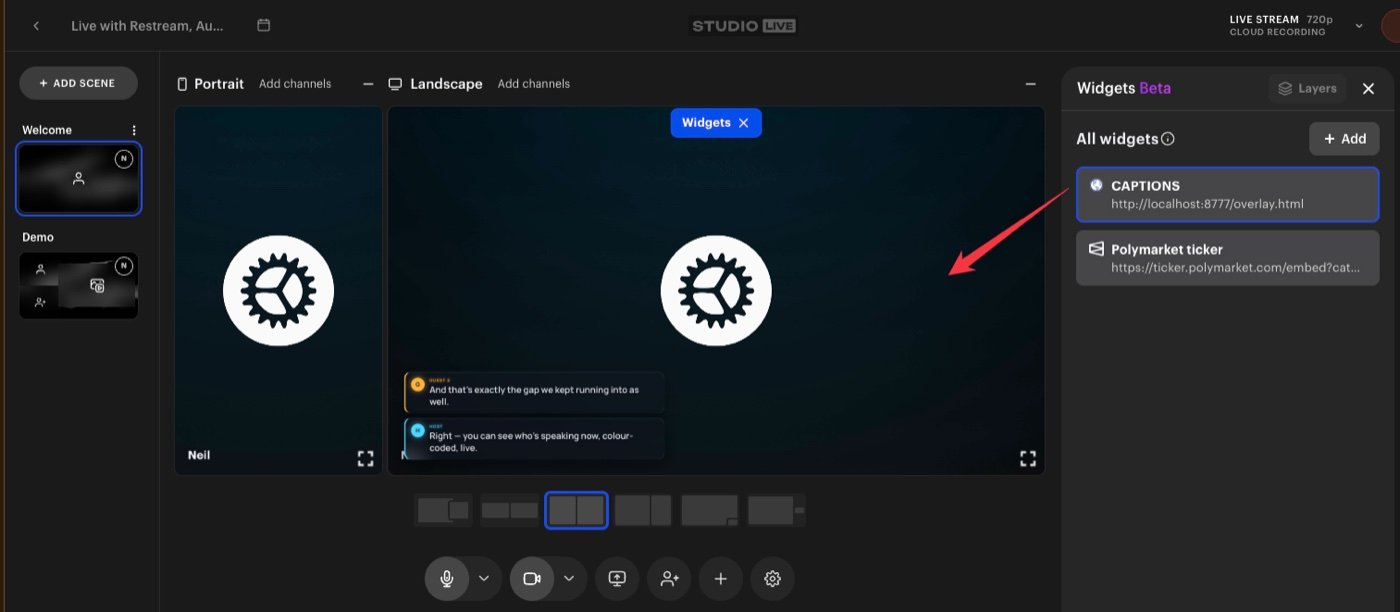
- Open the Widgets (Beta) panel and click + Add.
- Paste the overlay URL as the widget's address.
- Enable the widget and position the captions over your layout.
What about Zoom, StreamYard and the rest?
Zoom, Teams and Meet have no overlay layer, so captions can't be drawn inside the call itself. But if your show runs through a production tool — the classic setup is bringing Zoom into Ecamm Live or OBS and streaming from there — Live Show Captions captures your guests' audio straight out of the call and captions everyone in the produced output. That's my own workflow for interview shows.
Browser-based studios (StreamYard and similar) generally can't display an overlay served from your Mac — their video is composed in the cloud, which can't reach a local URL. If you love a browser studio, the practical route is producing in one of the Mac apps above and streaming to your platforms from there.
Windows-only tools like vMix need a Windows version of the app, which doesn't exist today — Live Show Captions is native macOS (Apple Silicon).
CueCam Presenter shares browser windows rather than URL sources, so the transparent overlay doesn't drop in the normal way — pair it with one of the apps above if captions are essential to your setup.
Frequently asked
What size should I make the browser source?
Match your canvas — 1920 × 1080 for a standard 16:9 stream. The overlay scales its captions to the size you give it, and you can adjust caption size, position and style from the Live Show Captions panel without touching the browser source again.
Can I use it on a vertical stream?
Yes — there's a dedicated 9:16 vertical overlay URL with its own position and size settings, so you can run a vertical show (or a simultaneous vertical feed) with captions laid out for portrait.
Can two apps show the overlay at the same time?
Yes. The overlay is served locally by the app, and more than one browser source can point at it — for example a horizontal program in Ecamm and a vertical feed in OBS, each using its own overlay URL.
Does the overlay need an internet connection?
No — the URL is served from your own Mac and the transcription runs on-device, so captions keep working even if your connection is shaky (your stream itself still needs internet, of course).
My app isn't listed — will it work?
If it runs on a Mac and has a browser, web or web-page source, almost certainly yes — the overlay is standard transparent web content. It's a one-time $49 purchase, so there's nothing to cancel; if you hit trouble, get in touch and I'll look at your setup.
One transparent overlay URL, pasted into a browser source — that's the entire integration, and it's why Live Show Captions works across the whole Mac streaming ecosystem rather than locking you into one tool.
Colour-coded captions for every speaker, in whichever app you produce with, free for 7 days:
Get Live Show Captions →